The details of your plan, at your fingertips
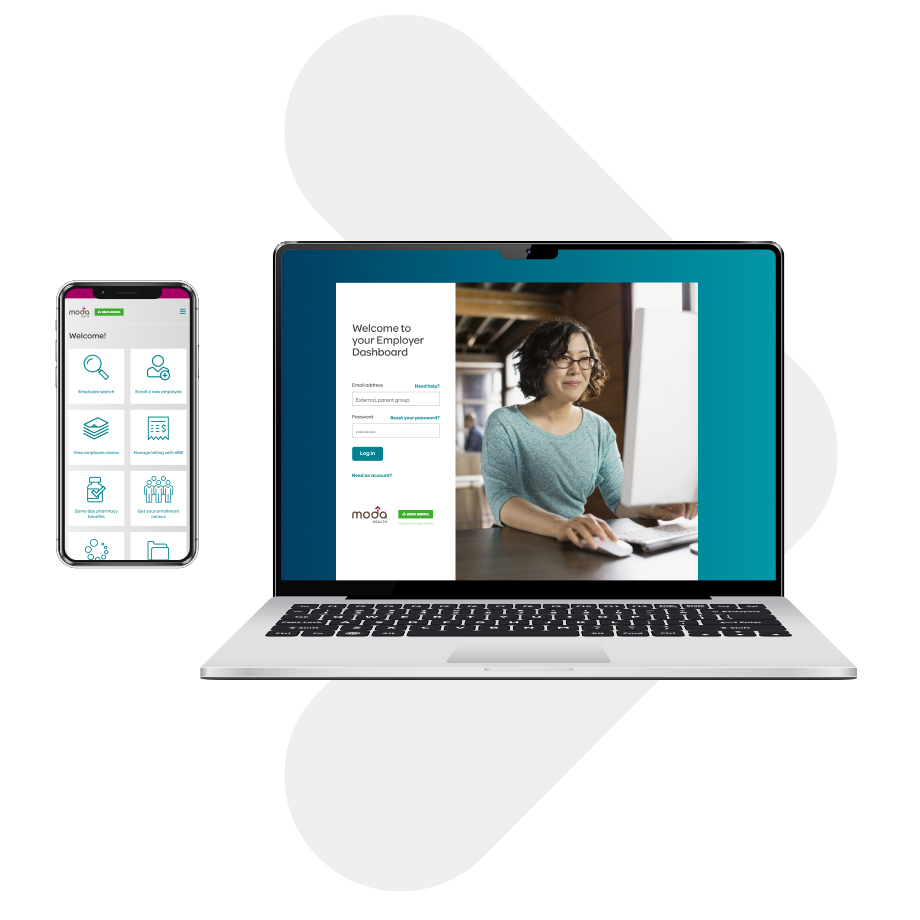
The Employer Dashboard is designed to give you easy access to your account and the information you need to run your benefits plan, your way, in your time, on your schedule.
Manage your account using eBill
- View and/or pay invoices
- Set up auto-payment and payment methods
- Set payment reminders
See all the things that eBill can do
Update who is on the plan
- Enroll employees and dependents
- Terminate coverage
- Change employee demographics
Compliance and regulatory
Staying up-to-date on compliance requirements can feel overwhelming. We’re here to help. From Affordable Care Act updates, to providing information and data needed to fulfill required notices, reporting and filing obligations, we’ll partner with you.
Make strategic decisions based on data
- Review enrollment data and history
- Generate enrollment census
- Obtain corporate reports (groups 100+)
Create an Employer Dashboard account
If you don’t yet have an Employer Dashboard account, you can get one in one of two ways.
Get added to your company’s account
If your company already has an Employer Dashboard account, you can ask a Company Admin to set up an account for you.
Request a new company account
Three steps to initiating your account request:
- Contact your Sales and Account Services representative and ask them to send you an electronic service agreement (ESA).
- Complete the ESA and mail or email it to the addresses included on the last page of the document.
- Look for an email from the Employer Dashboard with the subject line, "Complete your account set-up to start using your Employer Dashboard." Click the link* provided in the email. Then, you will be able to complete your account setup.
Two steps to competing your account setup
- After you've clicked the link provided in the email referenced above, create a password by following the instructions provided on the screen. Please note: Passwords are case-sensitive and must be between 8 and 20 characters. They must also not have spaces.
- Review and update your security questions by following the instructions on the screen. You can keep the security questions provided, or you can choose new ones. To choose new ones, click the arrow by each of the three security questions. Select the ones you would like and provide your answers.
*Please note: This link will expire after 24 hours. If the link you receive expires, please contact your Sales or Service Representative to request a new link.
Questions?
We’re here to help. Contact your account services team.